
Source Highlighting
Semantic and structural coloring for Object Pascal, built into VS Code. The language server colors identifiers by kind, shades structural keywords by nesting depth, and highlights the full construct when your cursor is on one of its keywords.
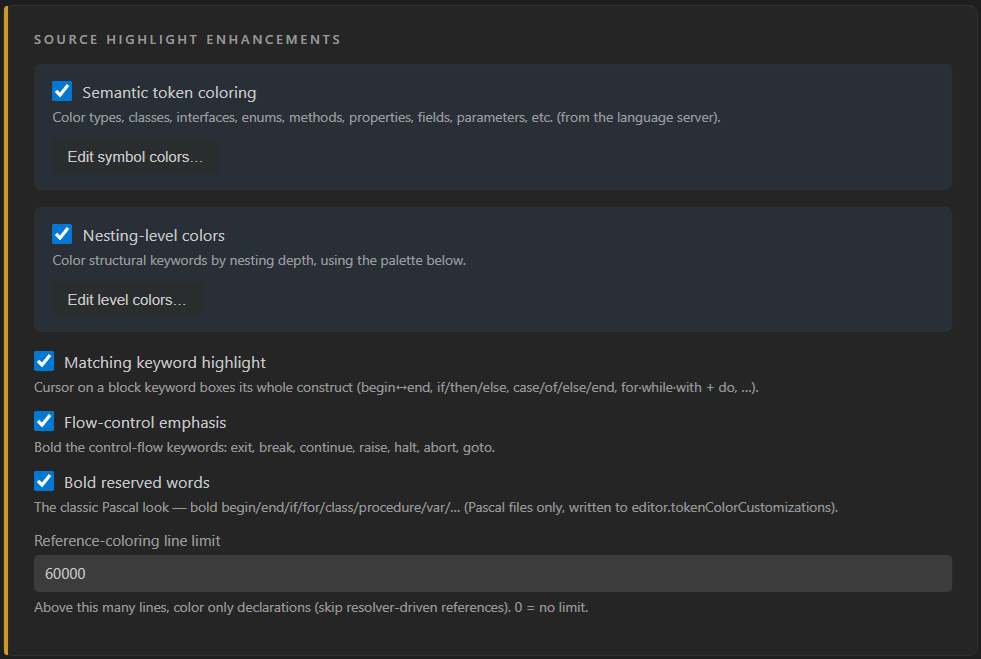
Coloring by meaning and structure
Most editors color code by lexical token alone. Vallenta Studio's language server resolves each identifier and colors it by its kind - type, class, interface, method, property, field, parameter, variable or constant - and shades the structural keywords around it by nesting depth. The coloring is available on every plan; Pro adds visual editors for setting each color yourself.
Built for Object Pascal
Semantic Token Coloring
The language server colors identifiers by their kind: types, classes, interfaces, enums and enum members, methods and functions, properties, fields, parameters, variables and constants each get their own color. Dotted unit names in a uses clause are fully colored with a dedicated unit color, and const values are colored distinctly from variables.
Structural Nesting Colors
Block keywords - begin/end, if, for, case, try - are colored by nesting depth. A begin/end takes the color of the construct it belongs to, and a nested or else-if block steps to the next level rather than repeating its parent's.
Matching Keyword Highlight
When the cursor is on a block keyword, its whole construct is highlighted - begin and end, if/then/else, case/of/else/end, for/while/with and do. The matching keywords are marked together, including in long or deeply nested routines.
Flow-Control Emphasis
Control-flow keywords - exit, break, continue, raise, halt, abort, goto - can be shown in bold, distinguishing the statements that transfer control from the code around them.
Bold Reserved Words
Reserved words - begin, end, if, for, class, procedure, var and others - can be rendered in bold. This applies to Pascal files only and is written through VS Code's editor.tokenColorCustomizations.
Switchable, with a Large-File Limit
Each highlight can be switched on or off independently. A reference-coloring line limit bounds the work on large files: above the configured number of lines, only declarations are colored and resolver-driven references are skipped (0 disables the limit).
Edit every color, with a live preview
The highlighting uses a default color palette on every plan. On Pro, two visual editors - Symbol colors and Nesting-level colors - let you set the colors directly, each with a live Object Pascal preview.
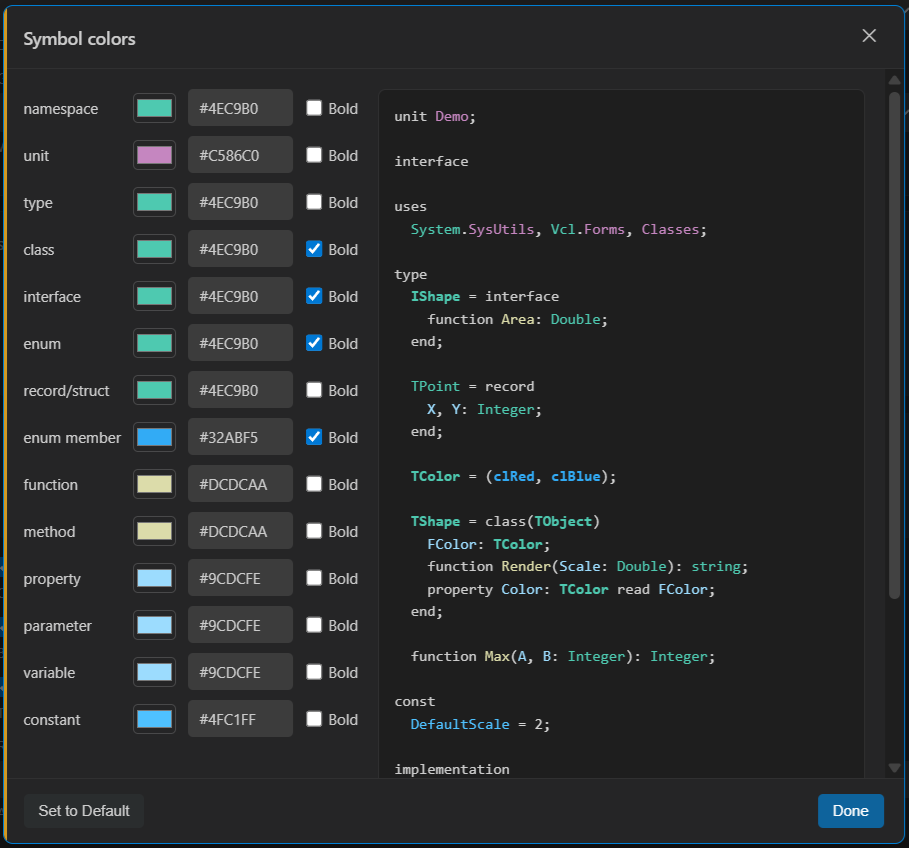
Set a color - and optional bold - for every symbol kind, with a live Object Pascal preview that updates as you choose.
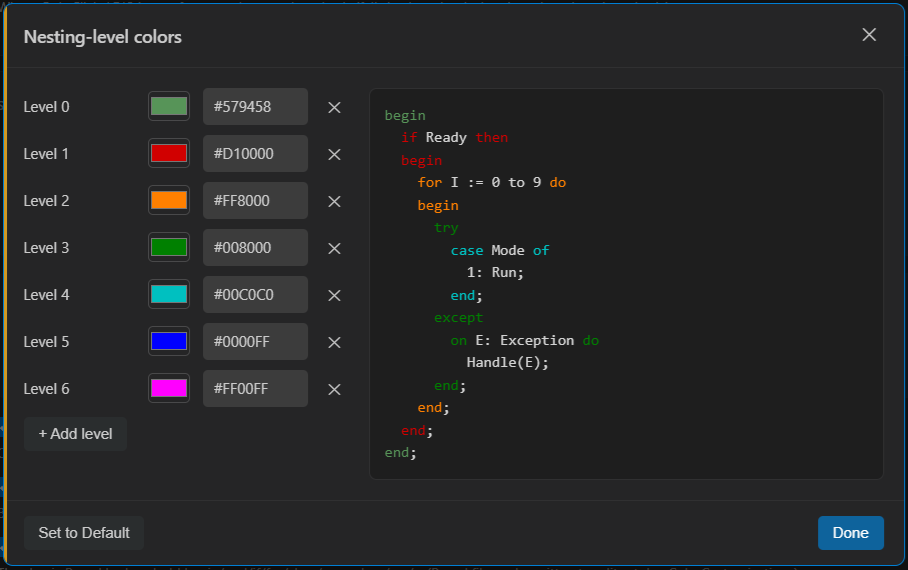
Set a color for each nesting level and add as many levels as required, with a live preview of nested begin/end, if, for, try and case blocks.
Coloring on every plan, editors on Pro
- Semantic token coloring by symbol kind
- Structural nesting-level colors
- Matching keyword highlight
- Flow-control emphasis and bold reserved words
- A default color palette
- Visual Symbol colors editor with live preview
- Visual Nesting-level colors editor with live preview
- A custom color (and bold) for every symbol kind
- A custom color per nesting level - add as many as required
- Set to Default at any time
Source highlighting, on every plan
Semantic and structural highlighting are included on every plan. The visual color editors are part of Pro; try every Pro feature free for 5 days when you register.